
Ride with Uber
Age Requirement
Customers under the age of 18 cannot use Lyft through Access-on-Demand. Customers must be 18 years of age or older to select Lyft as their Access-on-Demand provider.
Vehicle Types
Please note that they only vehicle types that work with Access-on-Demand are UberX, XL, Pet, Green, Comfort, Wait and Save and Women Drivers (customer must identify as a woman in their Uber profile to use this ride type, per Uber policy). Uber does not provide Wheelchair Accessible Vehicles (WAVs) through Access-on-Demand.
Getting Started
Before Your First Ride
Accepting Your Uber Voucher
New Uber users: Once RTD has verified and processed enrollment information, the customer will receive an email or text message. Click the link to accept the voucher.
Existing Uber account users: The voucher will automatically apply on qualifying trips.
A personal payment method (debit, credit, PayPal, etc.) must be entered into account prior to requesting a ride.
How to Get Your Access-on-Demand Voucher if You Don’t Have an Uber Account
- Sync: RTD sends your voucher to the email or phone number you provided.
- Check: Look for a notification from Uber via email or text.
- Claim: Tap "Get Started" or click the link to add the voucher to your account.
Get Started with Uber
Get Started with Uber
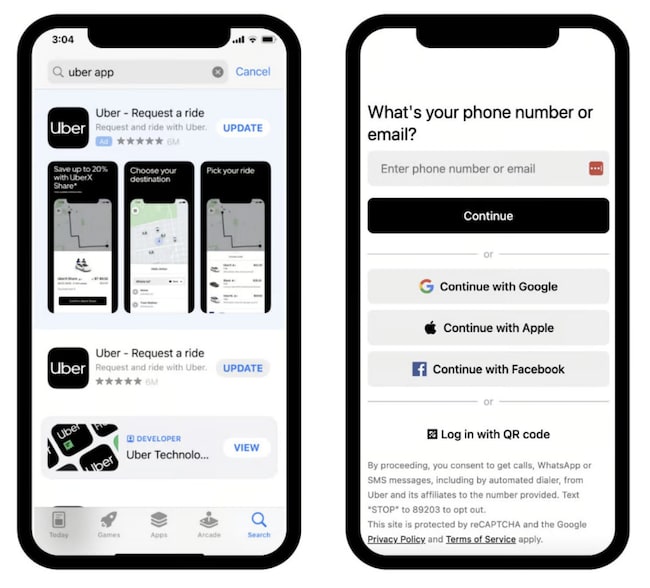
1. Go to the App Store or Google Play on your smartphone
2. Download the Uber app
3. Create your Uber account by providing the necessary details and following the app prompts
4. Set a strong password
5. Link a payment method
Pro-Tips for Success: Your account details must match your transit program records to receive the voucher.
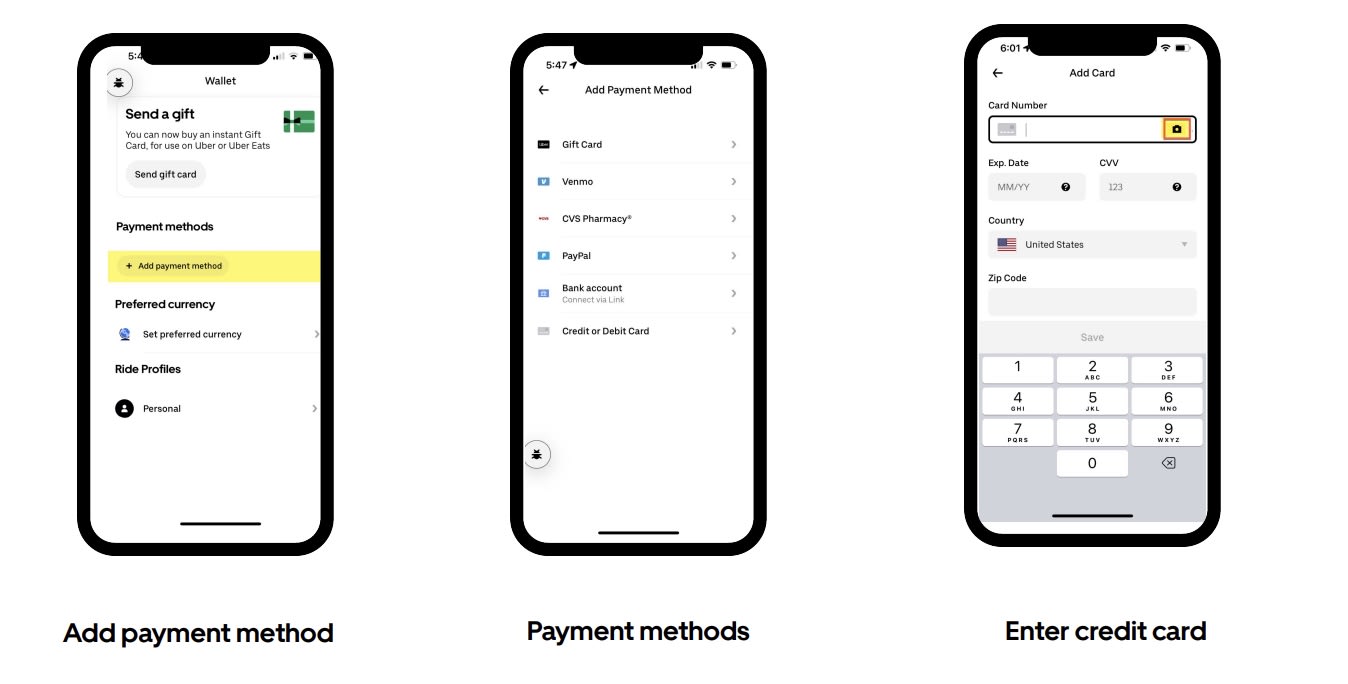
Add Payment Method
In order to add a payment method
- Click “Account ”
- Select “Wallet ” from your app menu.
- Tap “Add payment method
Rider pays the initial co-pay. The voucher covers the next $20. Rider pays any remaining balance and the tip.
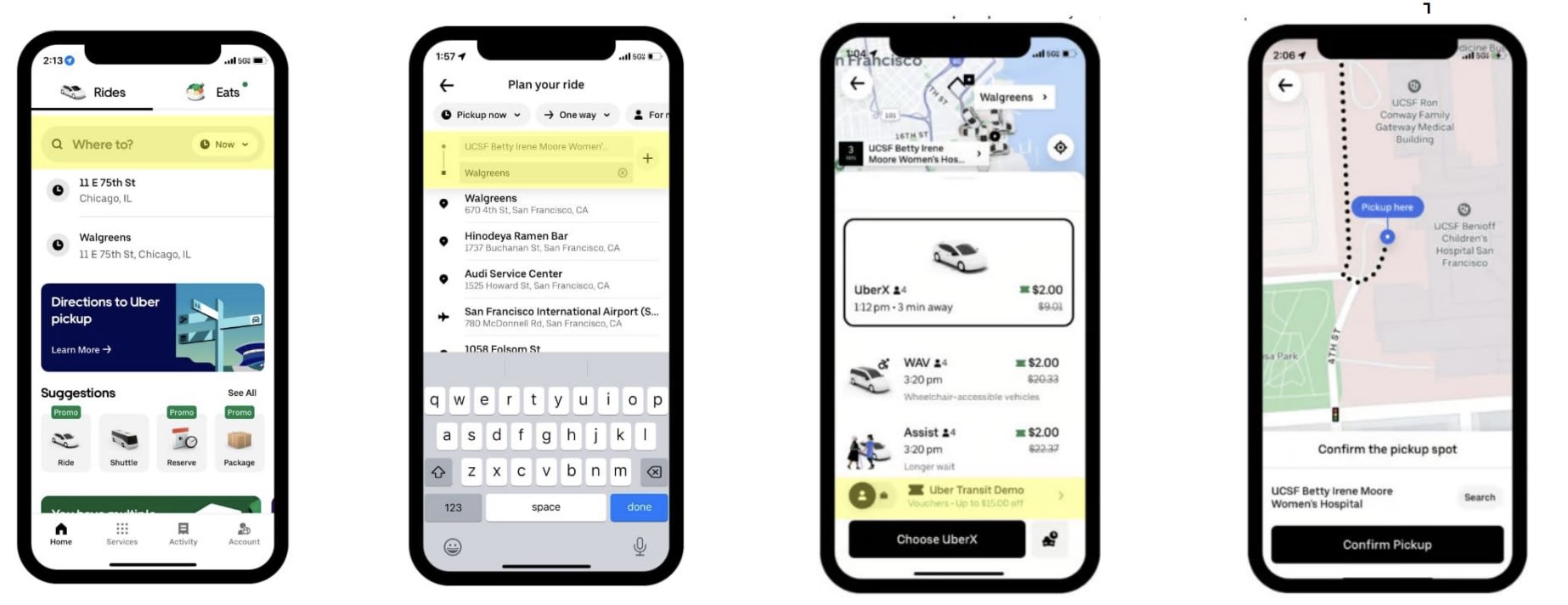
Booking A Ride
How to Request Ride
Enter Destination: Open the Uber app and type your destination in the "Where to?" box.
Verify Locations: Confirm your pickup and dropoff points are accurate.
Select ride type: Only UberX, XL, Pet, Green and Wait & Save are approved for Access-on-Demand. Look for strikethrough price to confirm the voucher is active.
Confirm pickup to book trip: confirm your pickup location & book trip
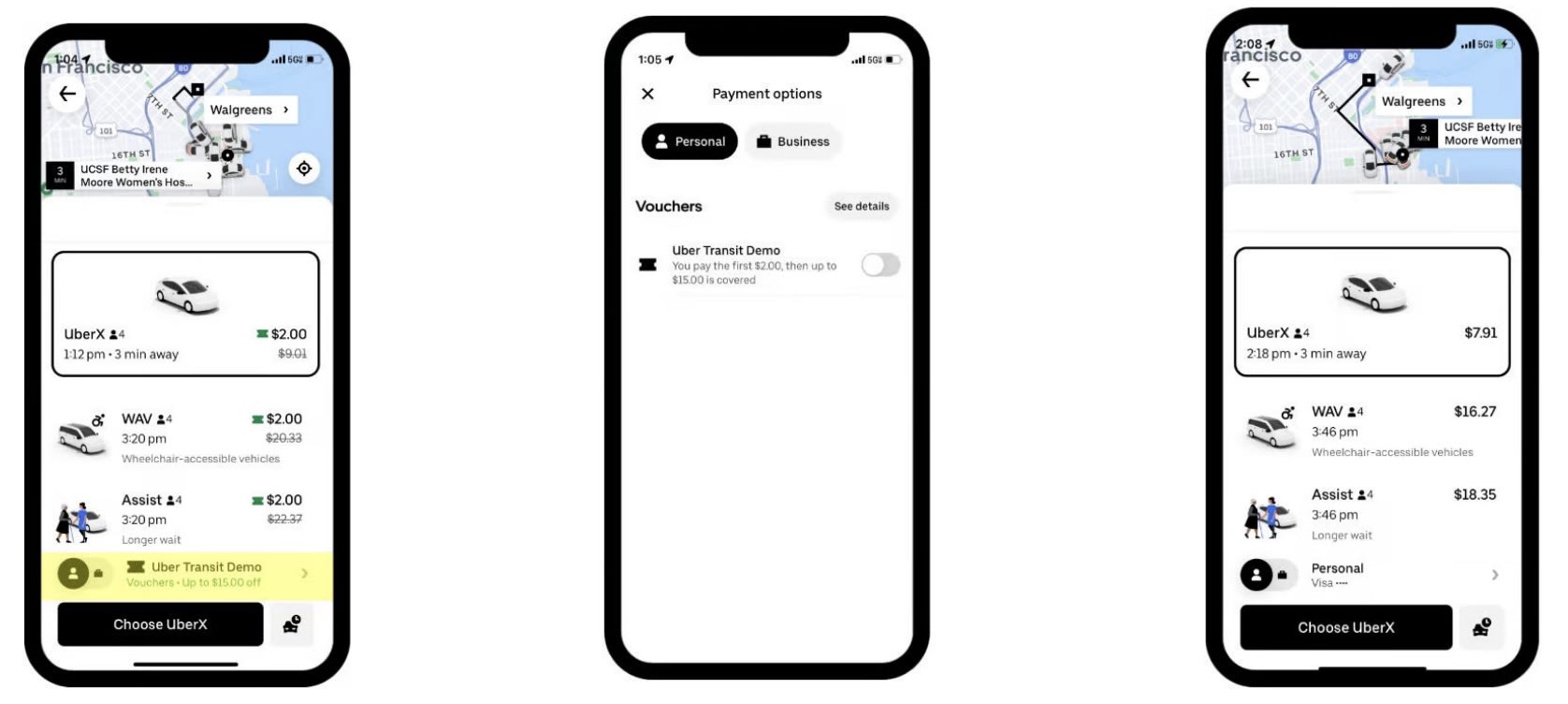
How to Turn off Uber Voucher
- Select Voucher: Tap the voucher name at the bottom of the ride options screen.
- Toggle Off: Find the voucher switch and swipe it to the "off" position.
- Confirm: Tap the "X" at the top left to return to your ride request.
Riding with Uber
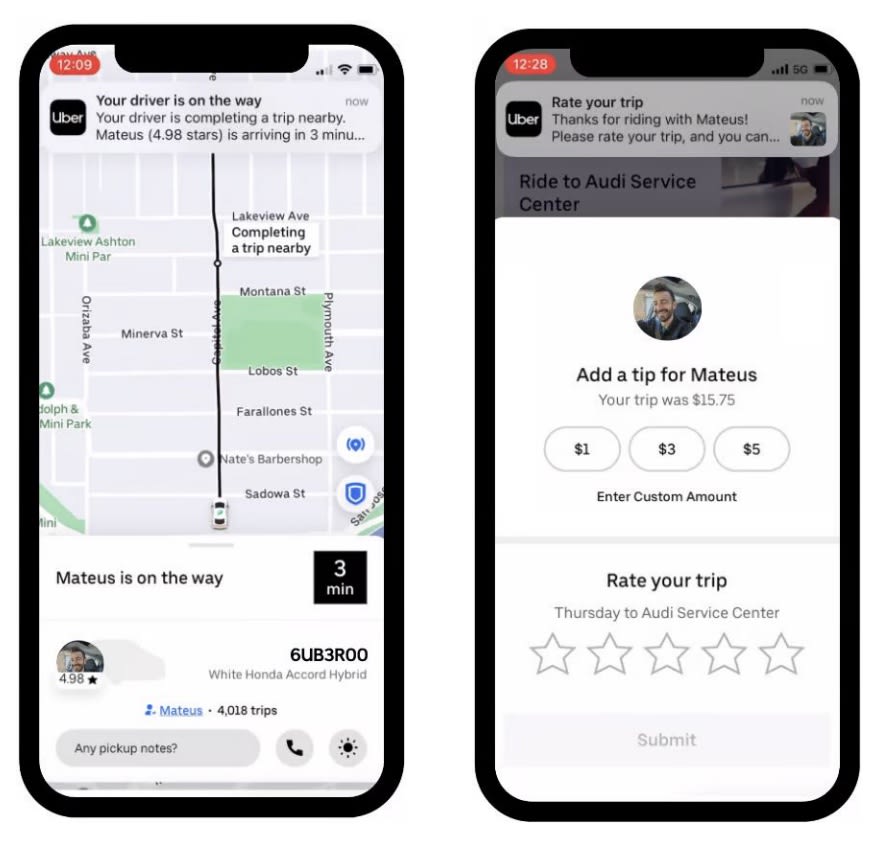
Track & Meet: Use the app to track your driver and head to the pickup location when they are close.
Verify Your Ride: Match the license plate in the app to the vehicle before entering.
Seamless Payment: Your trip is paid automatically via your linked account; no action is needed when the ride ends.
Rate & Tip: Rate your trip in the app. Tips are optional, not covered by the voucher, and will be charged to your personal payment method.
Pricing
Pricing
UBER PRICING STRUCTURE
Initial Fare + RTD $20 Subsidy = Variable Uber Rate
- Standard Fare: $4.50 per trip, before the RTD subsidy applies
- LiVE Fare: $2.25 per trip, before the RTD subsidy applies
- Ages 18–19: Initial fare is waived. RTD covers up to the first $20 of the eligible trip cost.
- Under 18: Not eligible to use Uber through Access-on-Demand.
Uber trip prices vary based on factors such as trip distance, estimated travel time, driver availability, and demand. The estimated amount the customer will pay is displayed in the Uber app before the ride is confirmed.
SURGE / HIGH-DEMAND PRICING
Uber uses variable pricing, which means trip prices may increase during periods of high demand or limited driver availability.
The RTD subsidy remains up to $20 even when Uber's trip price increases. Any eligible trip cost above the subsidy is the customer's responsibility.
During periods of surge pricing, we recommend waiting 10–15 minutes before requesting your ride, as fares may decrease once demand has lowered.
Customers should always review the estimated price displayed in the Uber app before confirming their ride.
TIPPING
Tips are optional and are not covered by the RTD subsidy.
If a customer chooses to tip their Uber driver, the full amount of the tip is the customer's responsibility and will be charged to the customer's payment method.
IMPORTANT PRICING INFORMATION
Uber prices can fluctuate. The price for the same trip may be different depending on the time of day, demand, driver availability, trip distance, and other factors used by Uber to calculate the fare.
The price displayed when requesting a ride should be reviewed before booking, especially during periods of high demand.
Good to Know
How to get help
Access On Demand customers must contact Uber’s help section via the app or here to resolve payment issues. When calling the Access On Demand information line for assistance with payment issues, we will require a case number provided by Uber to be able to assist customers who have been unable to resolve an issue through the Uber app.
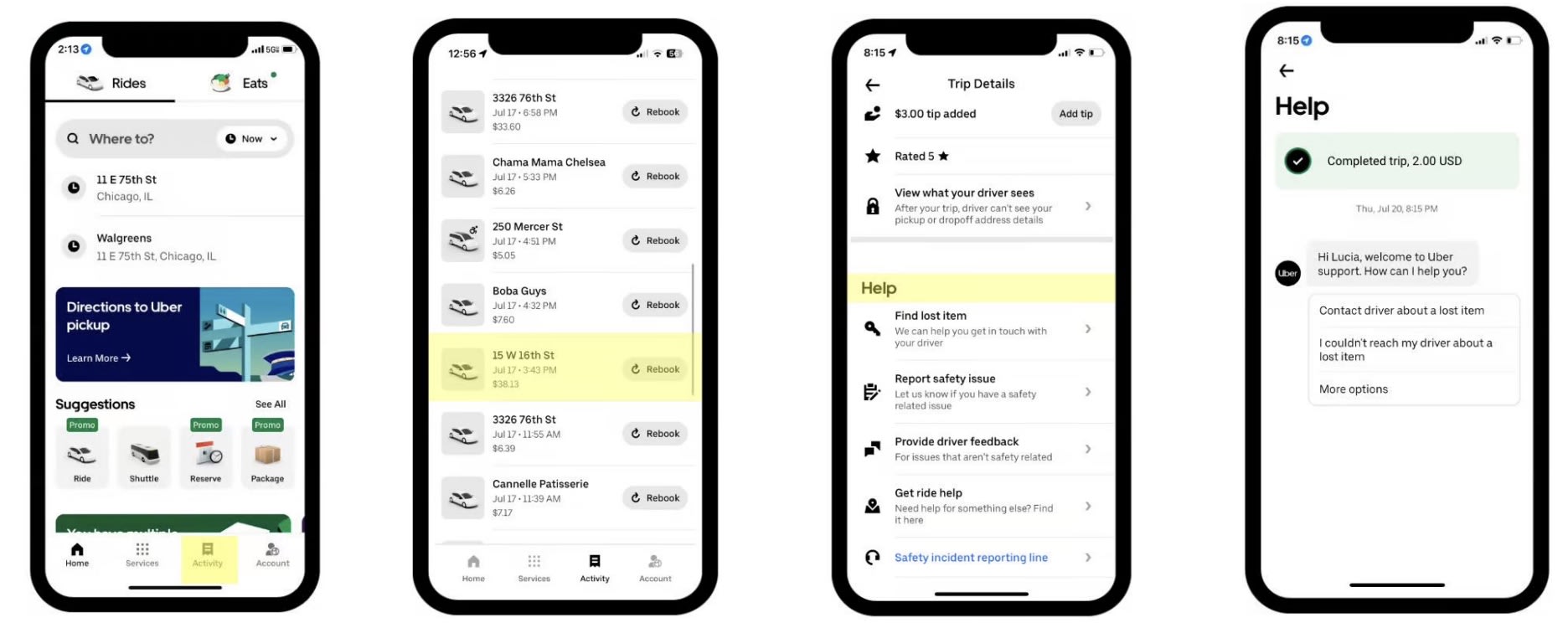
How to get help in app
- Go to Activity: Open the app and tap Activity at the bottom.
- Select Trip: Choose the specific trip where the issue occurred.
- Access Help: Scroll down to the Help section for support options.
- Get Support: Select an option to chat with a Support agent
When to contact RTD for assistance
Please call the office at (303) 299-2530 for the following issues:
- Voucher Issues - You have checked for the voucher, and it is not in your account.
- You have contacted Uber Help and the issue has gone unresolved. You must provide the Uber Case number provided when calling.
For any payment issues please see the Uber Help instructions.
Service Animals
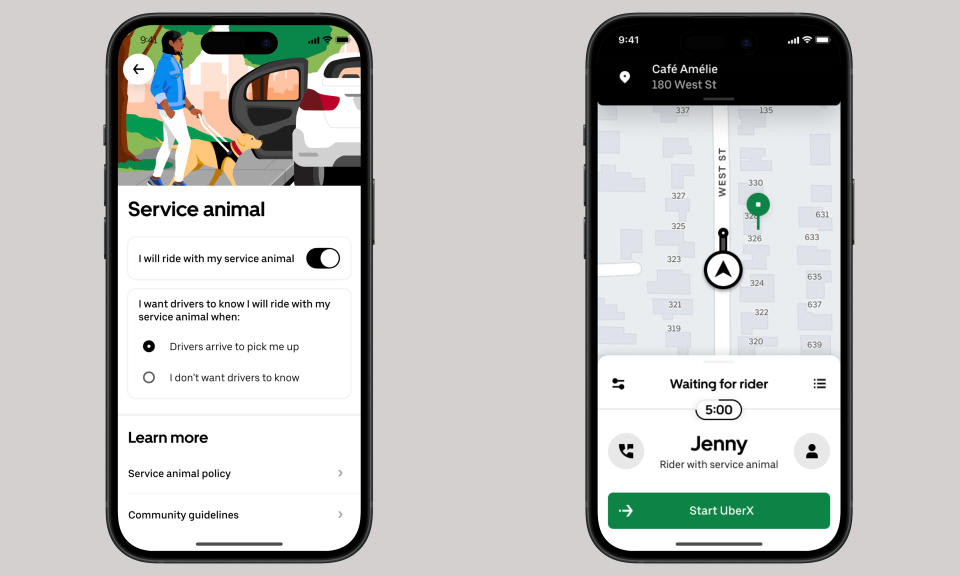
You can self-identify as a service animal handler in the Uber app. This means your driver will automatically see that you’re traveling with your service animal when they arrive to pick you up. This helps make trips easier and more comfortable for both riders and drivers.
How to Use This Feature:
- Open the Uber app and tap Account > Settings
- Tap Accessibility, then select Service Animal
- Tap Complete eligibility form and fill it out
- Select "I will ride with my service animal"
- Choose whether you want your driver to be notified
You can change this setting or turn it off anytime.
Service Animal Issues
To file a report from the Uber website, select the “I Want To Report A Service Animal Issue” link here or through the “Help” link on the Uber website. Or by phone at +1 (833) 715-8237.
For more information, reference the Uber Riding with Service Animals page.
Attention
Access On Demand customers must contact Uber’s help section via the app or here to resolve payment issues. When calling the Access On Demand information line for assistance with payment issues, we will require a case number provided by Uber to be able to assist customers who have been unable to resolve an issue through the Uber app.